# compendia

<figure><img src="/files/OMOEClZof47NvM23oEmV" alt=""><figcaption></figcaption></figure>

Welcome to compendia. Here are the basics to get started wrangling your photos and videos.

## Getting Started in 3 Steps

1. Load a folder into Compendia by setting the Media Folder using the link on the welcome screen, the **Browse** button, or **File > Open**. Images from the folder will appear in the **File List**:

<figure><img src="/files/bF4MSskvWTNwUU3sG1uC" alt="" width="563"><figcaption></figcaption></figure>

2. Make **tags** in groups by clicking in the **Tag Library** and filling in the names. **Tags** are the core organizing element in compendia:

<figure><img src="/files/5Bn23yJwKQJ2qlBSutxr" alt="" width="563"><figcaption></figcaption></figure>

2. Click (or ctrl-click or shift-click) in the file list to **select** images. The selected image shows in the **Previewer**, and Metadata details about the selected image appears in the **Properties Preview** below it:

<figure><img src="/files/Di6w1DSmQoPUaA5kFeoK" alt="" width="563"><figcaption></figcaption></figure>

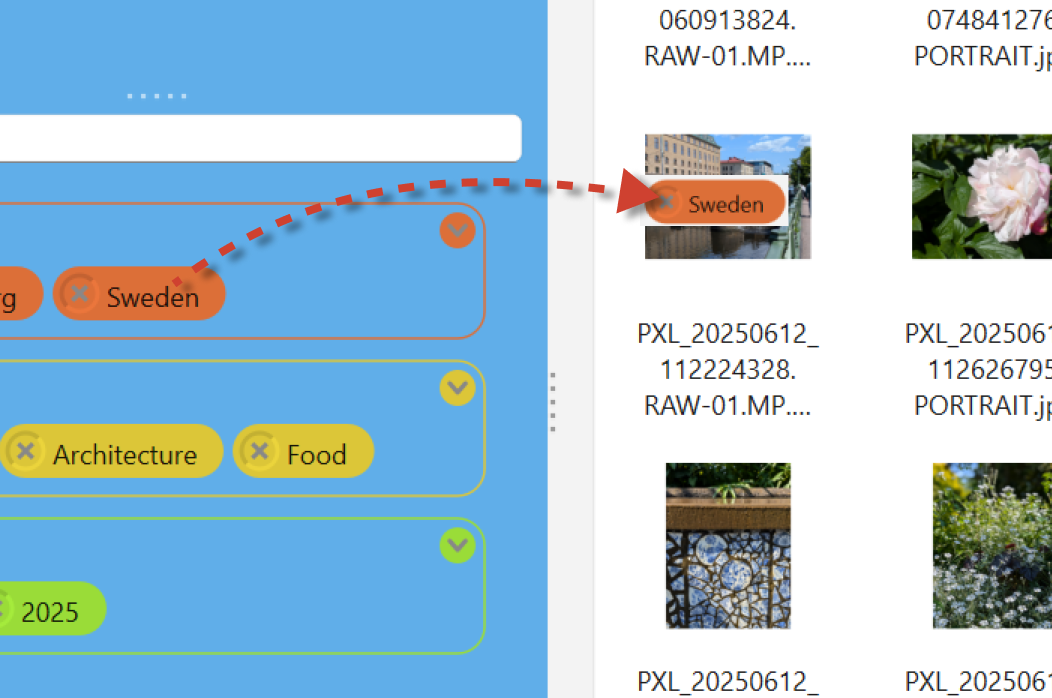
3. Apply tags to one or more images by dragging a tag from the **Tag Library** onto any **individual image icon**, or a **selected set** of images:

<figure><img src="/files/E2AodxcZiDyLNh8VTjBC" alt=""><figcaption></figcaption></figure>

## More Details

### Opening a Folder

Compendia works with folders of images on your local machine:

1. Make sure you have your images locally. If you use a cloud service like Apple or Google, download your pictures.
2. Open the folder containing your pictures, either with the link in the center of the welcome screen or the **Browse** button.
3. Navigate to a folder containing images or videos and click **Select Folder**.
4. Compendia will show a brief warning about how it creates files to tag your images, then it'll scan the folder and subfolders, and display thumbnails for all supported files.

Supported formats include JPEG, PNG, TIFF, HEIC/HEIF, and common video formats like MP4 and MOV.

{% hint style="info" %}
If you have a very large library of images, it may be best to start by exploring with a small set. Compendia can handle large sets of images, but it may be slower to try to work on your whole collection while you experiment and learn the application.
{% endhint %}

### The Interface

The application window is divided into these areas:

<table><thead><tr><th width="279.99993896484375">Area</th><th>Purpose</th></tr></thead><tbody><tr><td><ol><li><strong>File List</strong></li></ol></td><td>Thumbnails of files. When filters are applied, this list shows just the matching files.</td></tr><tr><td><ol start="2"><li><strong>Tag Library</strong></li></ol></td><td>All tag families and tags you have assigned to files in the current folder.</td></tr><tr><td><ol start="3"><li><strong>Tag Filters</strong></li></ol></td><td>Active filters that narrow the file list.</td></tr><tr><td><ol start="4"><li><strong>Tag Assignment</strong></li></ol></td><td>Tags applied to the files that are currently visible in the list.</td></tr><tr><td><ol start="5"><li><strong>Previewer</strong></li></ol></td><td>Full size zoom and pan image preview and video player, with metadata properties below.</td></tr></tbody></table>

<figure><img src="/files/FknpQe3232LN92kTiTHP" alt=""><figcaption></figcaption></figure>

### Creating Tags

**Tags** are organized into **Tag Families**, which are groups that share a color. For example, you might create families called *People*, *Places*, *Year*, and *Events*. Inside those you'd place *Susan, Dad, Mom*, or *Paris, New York, Yosemite,* and *2025, 2026* etc. Any structure of families and tags that you find useful, you can use.

#### Create a Tag Family and a Tag

1. Click in an empty part of the **Tag Library** to add a family.
2. Enter a name for the family and press *Enter*.
3. An empty tag will appear. If it doesn't or you lose it, just click anywhere in the body of the Tag Family box.

<figure><img src="/files/NsgcS60gZWm0kH5rXCnO" alt="" width="383"><figcaption></figcaption></figure>

4. Enter a tag name and press *Enter*.
5. To add more tags or families, click in an empty area of the tag library.

{% hint style="info" %}
**Important**: Compendia only saves tags that have **been applied to your files**. It may be tempting to lay out a whole structure, but it's a better practice to make *and assign* tags incrementally as you use them on files.
{% endhint %}

### Applying Tags to Files

#### Dragging from the library onto specific file(s)

* Drag and drop a tag onto an individual file to apply it to that file.

<figure><img src="/files/xTC2q9k1eJIX7zfyQlnA" alt="" width="563"><figcaption></figcaption></figure>

* Select a set of files and drag a tag onto any one of them to apply it to all selected files.

#### Dragging into the Tag Assignment area

The bottom center area of the interface, below the file list, is the **Tag Assignment Area***.* One of the most powerful ways to assign tags is to drag tags here - but note that a tag added in this way will be applied to *all* the visible files.

The idea is that you first **filter** the images you want, by name or by folder or by other means, and then you can assign tags to larger batches of files, which is essential for organizing a large library.

### Removing a Tag

Click the **×** button on any tag in the **Tag Assignment** area to remove that tag from **all** the visible files.

Click the **×** button on any tag in the **Tag Library** (bottom left) to remove it completely from all files in your project.

### Filtering by Tag

To narrow the file list to only files that have a specific tag:

1. Drag a tag from the Tag Library and drop it into the **Tag Filters** area (top-left).
2. The file list updates immediately to show only files that have all the active filter tags.
3. To remove a filter, click the **×** on the tag in the Tag Filters area. This removes it from the filter, but not from your files.

A powerful filtering technique is to "stack" multiple tags in the filter area. The filter can be set to use *and* or *or* logic, so you can zero in on only images that have sets of tags.&#x20;

Example: if you want pictures of "Denise" in "Paris" in "2005," you can put all three tags into the filter area and choose the ALL option. The file list will only show images that are tagged Denise *and* Paris *and* 2005.

On the other hand, if you want to see pictures from Paris *or* New York, put both tags in the filter area but choose the option ANY of these tags.

### Searching by Name

Type in the search boxes at the top of the file list to filter by file or folder name. This works alongside tag filters, and both are applied at the same time. This is very handy if you have a large set of folders but there is some naming criteria that you can use to narrow it down, like the last batch of pictures from your phone, or a date that appears in the folder name.

### Saving Your Work

Tag data is saved by clicking **Save** in the top area, or using **File → Save**. Each images's metadata and tags are stored in a `.json` sidecar file in the same folder as the image.

When you have unsaved changes, save before closing to avoid losing your work.

## Next Steps

Once you have tagged your library you can:

* Use multiple simultaneous tag filters to find exactly the files you need.
* Reopen the same folder later. Compendia reads the sidecar files and restores all your tags.
* Reorganise your tag families and rename tags at any time; existing assignments update automatically.


---

# Agent Instructions: Querying This Documentation

If you need additional information that is not directly available in this page, you can query the documentation dynamically by asking a question.

Perform an HTTP GET request on the current page URL with the `ask` query parameter:

```
GET https://compendia.gitbook.io/compendia/readme.md?ask=<question>
```

The question should be specific, self-contained, and written in natural language.
The response will contain a direct answer to the question and relevant excerpts and sources from the documentation.

Use this mechanism when the answer is not explicitly present in the current page, you need clarification or additional context, or you want to retrieve related documentation sections.